
At EasyTechJunkie, we're committed to delivering accurate, trustworthy information. Our expert-authored content is rigorously fact-checked and sourced from credible authorities. Discover how we uphold the highest standards in providing you with reliable knowledge.
What are the Best Tips for RAM Installation?
Random access memory (RAM) installation is an easy process, providing a few preliminary steps are taken. The installer must acquire the right RAM for the computer in the correct configuration, ground himself before starting, and ensure the computer is turned off and unplugged prior to installation. With these few ducks in a row, the RAM should install easily into the memory banks or sockets, and the computer should faithfully count it up at the next boot.
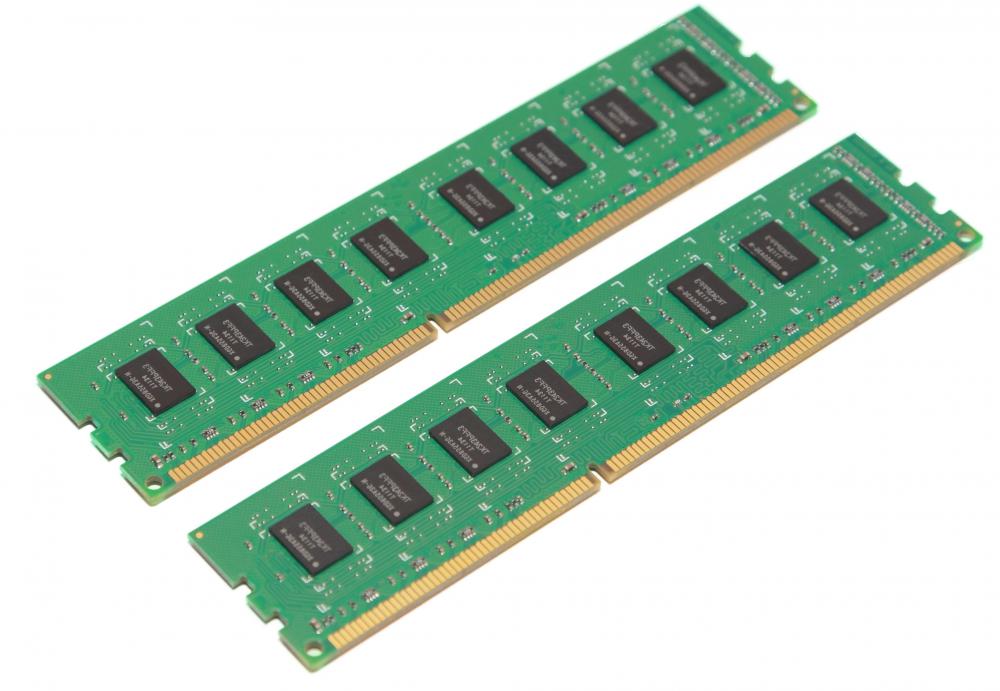
RAM comes in the form of a circuit board about the size of a stick of gum. A RAM stick features several memory chips and a series of gold pins along the bottom edge, notched in different configurations depending on the model and type. This gold edge slips into the memory bank or slot on the computer with gently applied pressure. The bank is designed to accept the correct type of memory stick. RAM installation should always go easily, with the installer never having to apply brute force.

The installer should consult the computer's manual to find out what type of RAM the system requires. If he does not have the manual, one can likely be found online using any search engine. If a desktop, the motherboard's model number may be required. Leading online memory dealers also have search engines on their sites that will allow someone to enter a laptop model to see what type of memory it takes. This should be cross-referenced with the manual or other dealers to ensure correctness, as RAM might not be returnable.
In many cases, the RAM already present on the system will need to be removed to make way for higher-capacity sticks. Before purchasing memory for a RAM installation, the installer should determine if he will be able to use any of the old RAM or not.

Note that some computers make use of dual-channel RAM that works in pairs. In this case, the most benefit from new RAM installation can be obtained if the total amount of RAM is bought in two sticks, rather than a single stick. For example, if 2 Gigabytes (GB) total are desired, it would be better to get two 1 GB dual-channel sticks, rather than a single 2 GB stick.

Motherboard memory banks should be filled in order, as stated in the manual. There might be four banks total, for example, and if the installer will only be using two banks, banks one and two should be used rather than banks three and four. Check documentation that came with the motherboard or laptop to see how the banks are numbered.
Memory chips are susceptible to damage by static discharge built up in the body. Before beginning RAM installation, it is important for the installer to ground himself. This can be done in a number of ways, but wearing a grounding wrist strap is recommended. These are widely available and quite inexpensive.
Once grounded, the installer should turn off the computer and unplug it. If a laptop, remove the battery pack. The memory banks can be accessed by opening the computer case or by removing the protective plate on the underside of the laptop.

Slow, gentle pressure should be applied to the metal or plastic clips at either end of the bank or slot to push them outward, away from the stick. The RAM should pop out of the bank. In some cases, the RAM will need to be gently pulled out. Make sure the clips at both ends are free, and gently lift at either end to pull the stick out evenly. In laptops, RAM is installed at an angle, and should be removed at the same angle.
Whether removing old memory or handling new memory, avoid touching the gold pins on the bottom of the sticks. Also avoid touching the memory chips. When possible, hold a memory stick by its edges.
Once the memory banks are free, install the new RAM by filling bank number one first, then two, and so on. Be sure the RAM stick is pressed firmly into the slot, gold pins down, by applying even pressure all along the top edge of the stick using several fingertips evenly spaced. When the stick is inserted correctly, very little gold along the top edge of the slot or bank should be seen, and the RAM should be inserted evenly. The clips should spring into place to lock the stick in, though in some cases, the clips may need to be pressed up and into the locking notch at the edge of the stick.
For specific directions on your exact model, consult the manual. After the RAM installation is complete, replace any coverings and the battery pack, if required. Plug in the computer. The system should count up the new RAM without issue at the next boot.
AS FEATURED ON:
AS FEATURED ON:









-
![A computer motherboard.]() By: VIA GalleryA computer motherboard.
By: VIA GalleryA computer motherboard. -
![A RAM card.]() By: Sergey DashkevichA RAM card.
By: Sergey DashkevichA RAM card. -
![Adding computer RAM may allow for a larger buffer to improve media streaming.]() By: vinsenAdding computer RAM may allow for a larger buffer to improve media streaming.
By: vinsenAdding computer RAM may allow for a larger buffer to improve media streaming. -
![Adding RAM -- or Random Access Memory -- to your computer can increase its performance.]() By: charnsitrAdding RAM -- or Random Access Memory -- to your computer can increase its performance.
By: charnsitrAdding RAM -- or Random Access Memory -- to your computer can increase its performance.


Discussion Comments
Thank you for the great info. I am taking a class on computers for seniors. This helps a lot. I love wise Geek.
After turning off the computer and unplugging it, I always press the on/off button. This seems to release any residual power held in the computer by capacitors etc.
Post your comments