
At EasyTechJunkie, we're committed to delivering accurate, trustworthy information. Our expert-authored content is rigorously fact-checked and sourced from credible authorities. Discover how we uphold the highest standards in providing you with reliable knowledge.
How do I Disable my Touchpad?
A touchpad is a small, sensitized surface built into a laptop upon which a finger swipe will direct the movement of a mouse cursor. Some desktop keyboards also feature a built-in touchpad. A tap on the pad acts as a click, and a double-tap, as a double-click. Vertical scrolling is possible by sliding a fingertip along the right edge of the pad, and horizontal scrolling by using the bottom edge. Most pads can also be disabled using a setting located in the proprietary software for the device.
In some cases a link to mouse settings will be visible in the bottom right portion of the desktop toolbar where icons are displayed for active programs running in the background. In Windows® operating systems this is known as the system tray. Macintosh® and Linux® users have the equivalent. Clicking on the mouse icon will bring up the interface necessary to disable the touchpad, though you might have to navigate through menus or tabs to find the setting.

If the system tray does not contain a mouse or touchpad icon, navigate to the Control Panel. The path to the Control Panel differs depending on the operating system. In Windows® XP, click the Start button, then highlight Settings to get a side-menu with the Control Panel listed. If you cannot find the Control Panel use the system's Search function to look for a folder of the same name. Once inside the Control Panel, scroll down to the Mouse icon and click it.

Many touchpads use Synaptics® drivers and software, though there are several versions of this software. Try looking for a tab or menu tree heading called Device Settings to find the control to disable the device. If your software doesn’t have a Device Settings tab, or the control to disable the pad isn’t on that tab, try the Help menu. Macintosh and Linux systems have their own versions of the Control Panel that will also lead to touchpad settings by navigating through Mouse options.
Within the software there might be an option to use both an external mouse and the touchpad. In other cases selecting one of these options de-selects the other, or the control to disable the pad might be independent of external mouse settings.

Some laptops have both a touchpad and pointing stick, a small red nub in the center of the keyboard that resembles an eraser. It might not be possible to disable both devices at the same time, but the pointing stick should not interfere with the operation of an external mouse.
There are plenty of reasons for disabling a touchpad. Video editing and gaming are two examples of activities better served by an external mouse. However, you might want to disable one because of poor performance during routine computer use. Maybe the pad is behaving erratically, isn’t sensitive enough, is too sensitive, or is simply not setup to your liking. All of these problems can be addressed by ensuring the proper drivers are installed and the configuration settings are tweaked to taste. After adjusting the software you might opt to keep it enabled, saving yourself the hassle of using an external device.
AS FEATURED ON:
AS FEATURED ON:









-
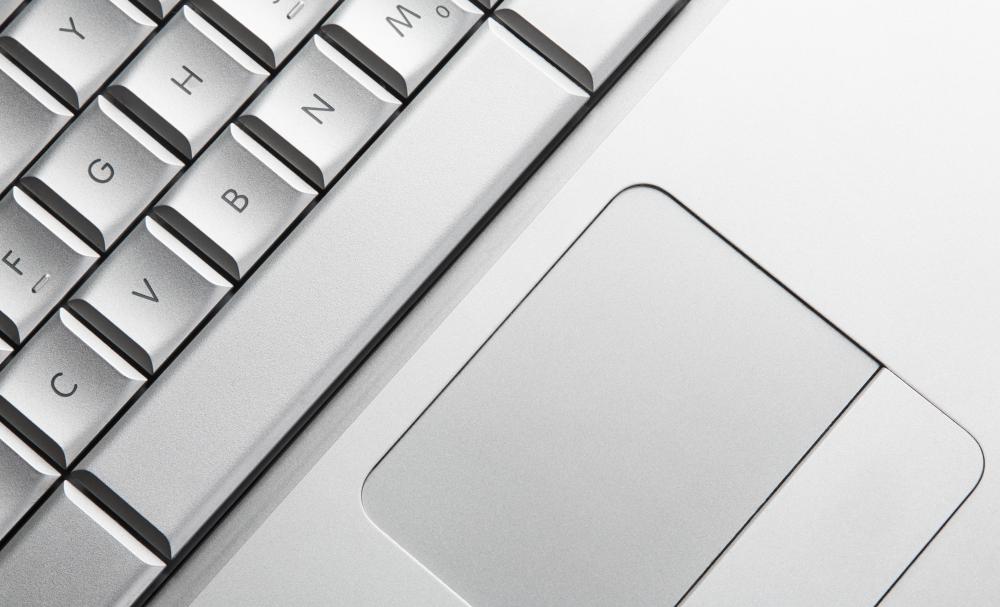
![You can usually disable a computer's touchpad by using your operating system's control panel feature.]() By: Alexey LaputinYou can usually disable a computer's touchpad by using your operating system's control panel feature.
By: Alexey LaputinYou can usually disable a computer's touchpad by using your operating system's control panel feature. -
![Disabling a touchpad is sometimes necessary when using certain programs, such as video editing and gaming, that work better with an external device.]() By: Peter AtkinsDisabling a touchpad is sometimes necessary when using certain programs, such as video editing and gaming, that work better with an external device.
By: Peter AtkinsDisabling a touchpad is sometimes necessary when using certain programs, such as video editing and gaming, that work better with an external device. -
![Most laptops have a touchpad built into them.]() By: GajusMost laptops have a touchpad built into them.
By: GajusMost laptops have a touchpad built into them.


Discuss this Article
Post your comments